Workbranch › Blog › Organize AI chats
Organize AI chatsHow to find an old ChatGPT conversation (and never lose one again)
ChatGPT gave you exactly the right answer a few weeks ago. Now it's buried somewhere in hundreds of chats with titles like "Quick question" and "Marketing ideas". Here's how to find it with ChatGPT's own tools, what to do when search comes up empty, and how to make the next one take seconds.
Short answer: open Search in the ChatGPT sidebar (on the web, press Cmd+K on Mac or Ctrl+K on Windows) and type a distinctive word from the conversation. Search matches chat titles and messages, including archived chats. If nothing turns up, check that you're in the right account or workspace, then look in Settings → Data controls → Archived chats.
That solves most cases. The rest of this guide covers what to do when it doesn't, which chats can't be recovered, and the habits that make the next search take seconds. Everything below reflects ChatGPT as of October 2026. Menu names can differ slightly by plan and device.
| If you… | Look here |
|---|---|
| Remember a word or phrase from it | Sidebar search (Cmd+K or Ctrl+K on the web) |
| Use more than one ChatGPT account | Switch account or workspace, then search again |
| Archived it to tidy up | Settings → Data controls → Archived chats |
| Kept it in a project or pinned it | The project or Pinned section in the sidebar |
| Shared it with someone | Settings → Data controls → Shared links |
| Only remember the gist | Ask ChatGPT, with Reference chat history on |
| Need to search everything at once | Export your data and search the files |
How do I search my ChatGPT history?
ChatGPT has a built-in sidebar search for your own content. According to OpenAI's help page on finding chats, it covers chats, projects, images and files, works on every plan on the web, iOS and Android, and doesn't search the web.
- Open Search from the ChatGPT sidebar. On the web, Cmd+K (Mac) or Ctrl+K (Windows) opens it directly.
- Type words from the conversation. Search matches words in a chat's title or in its messages.
- Narrow it with a filter if you see them: All, Chats, Images, Documents or Projects. If a filter hides what you need, switch back to All.
- Open the result to jump straight into the chat.
Don't scroll. OpenAI notes that an older chat that no longer shows in the sidebar hasn't necessarily been deleted. Searching for a phrase from it is the fastest way back.
What to search for when you only half-remember a chat
Search is only as good as the words you give it. A few things that help:
- Search for words you typed, not words you think the AI used. Most people remember their own question better than the answer. If you asked about "churn on the Growth plan", search "Growth plan".
- Rare words beat common ones. Product names, people, error messages, file names, numbers and places. "Postgres timeout" returns far less noise than "database".
- Try near-synonyms. If "pricing" finds nothing, try "price", "plans" or the name of the competitor you compared against.
- Search for the project name if the chat lived in a project. Search covers projects too.
- Use the Documents or Images filter if the chat involved an uploaded file or a generated image.
Can't find it? Work through this checklist
If search comes up empty, go through these checks in order. They follow OpenAI's own troubleshooting steps for missing and archived chats.
- Check the account and workspace. Many people have a personal ChatGPT account and a work one, or signed in once with a different email or sign-in method. Search only covers the account and workspace you're currently in.
- Open Archived chats. Archiving hides a chat from the sidebar without deleting it. Go to Settings → Data controls → Archived chats (View archived chats on some devices) and unarchive the one you need.
- Look inside your projects and Pinned section. Chats you moved into a project live under that project. On the web, ChatGPT can also group Recents by project, and pinned chats and projects sit in their own Pinned section, according to the June 2026 release notes.
- Check your shared links. If you ever shared the conversation, it's listed under Settings → Data controls → Shared links → Manage (OpenAI: sharing conversations). It's a handy shortlist of chats you once thought were worth sending.
- Refresh and give it time. Recently created or deleted chats can take a while to update in search. Sign out and back in, and check OpenAI's status page for an incident.
Some chats are gone for good. Deleted chats, including those removed with Delete all chats, can't be restored in ChatGPT or by OpenAI support, and a data export won't bring them back. A temporary chat you didn't save never enters your history at all. If you might need a chat again, archive it instead of deleting it.
Ask ChatGPT to recall it for you
If memory is on, ChatGPT can sometimes do the remembering for you. With Reference chat history enabled (Settings → Personalization → Memory, where your plan and region offer it), ChatGPT can use relevant information from past conversations in new answers, according to OpenAI's memory help page.
Try a prompt like: "A few weeks ago we worked out pricing for the Growth plan. What did we land on?" When ChatGPT uses personal context, a Sources option can appear below the response, showing which past chats or memories it drew on.
Two caveats. Memory doesn't keep every detail, so you get a reconstruction, not the original answer word for word. And in a project set to project-only memory, chats can't reference conversations outside that project.
Last resort: export your data and search the files
When you need to search everything at once, or you want a copy outside ChatGPT, request a data export (OpenAI: exporting your ChatGPT history):
- Request it. Go to Settings → Data controls, select Export under Export data, then Confirm export.
- Wait for the email or text. OpenAI says exports can take up to 7 days to arrive.
- Download it within 24 hours, while signed in to the same account. The link expires after that.
- Unzip it and search. Your conversations are in a file called conversations.json (larger exports split it into numbered files), per OpenAI's guide to transferring exports. Search it with your computer's file search or any text editor.
Self-service export is available on Free, Go, Plus and Pro, but not in ChatGPT Business, Enterprise or ChatGPT for Healthcare workspaces. There, ask your workspace owner.
Habits that stop good answers from getting lost
Everything above is a recovery tool. These habits mean you rarely need one. We cover the full system in inbox zero for AI chats and our guide to organizing ChatGPT conversations.
- Rename chats that matter, right away. Auto-generated titles are vague. Use project, then outcome: "Atlas – onboarding email, final copy". A good title is the best search term you'll ever have.
- Keep one topic per chat. A chat that drifts from pricing to hiring to a bug is hard to name and harder to find. Start a new chat when the subject changes.
- File as you go. Move chats into one project per client, product or area of your life. Our comparison of ChatGPT Projects vs Claude Projects covers what projects can and can't do.
- Archive, don't delete. Archiving clears your sidebar and keeps the chat searchable. Deleting is permanent.
- Pin the few chats you use every week, so you never have to search for them.
- Move the decision out of the chat. If an answer turns into work, put it where you track work. Here's how to turn AI answers into tasks.
How Workbranch keeps old answers one keystroke away
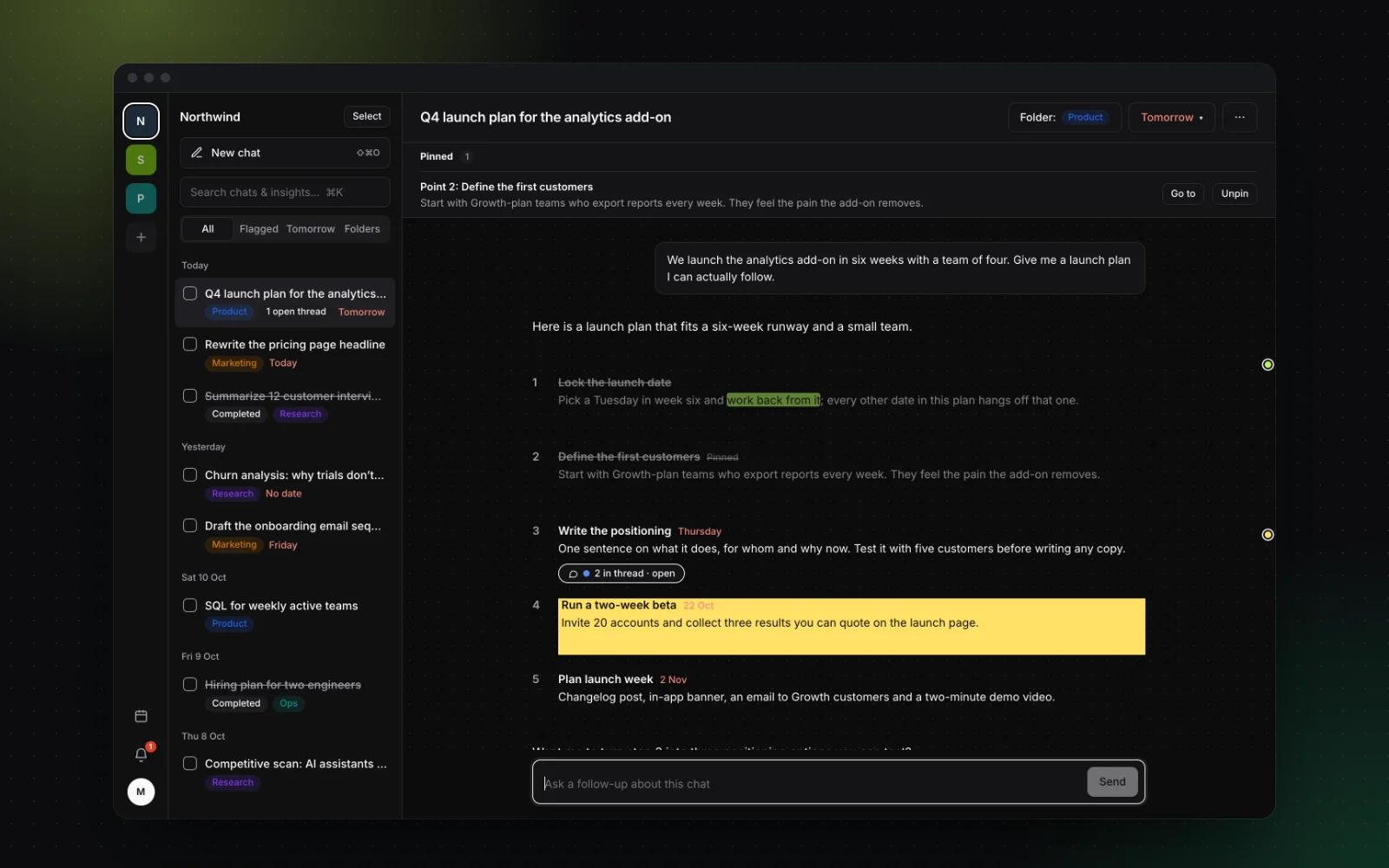
ChatGPT's search is good at finding a chat. The harder problem is that your history is one long list sorted by date, and the thing you need is usually one point inside one long reply. Workbranch is an AI chat workspace organized like email, built around that problem:
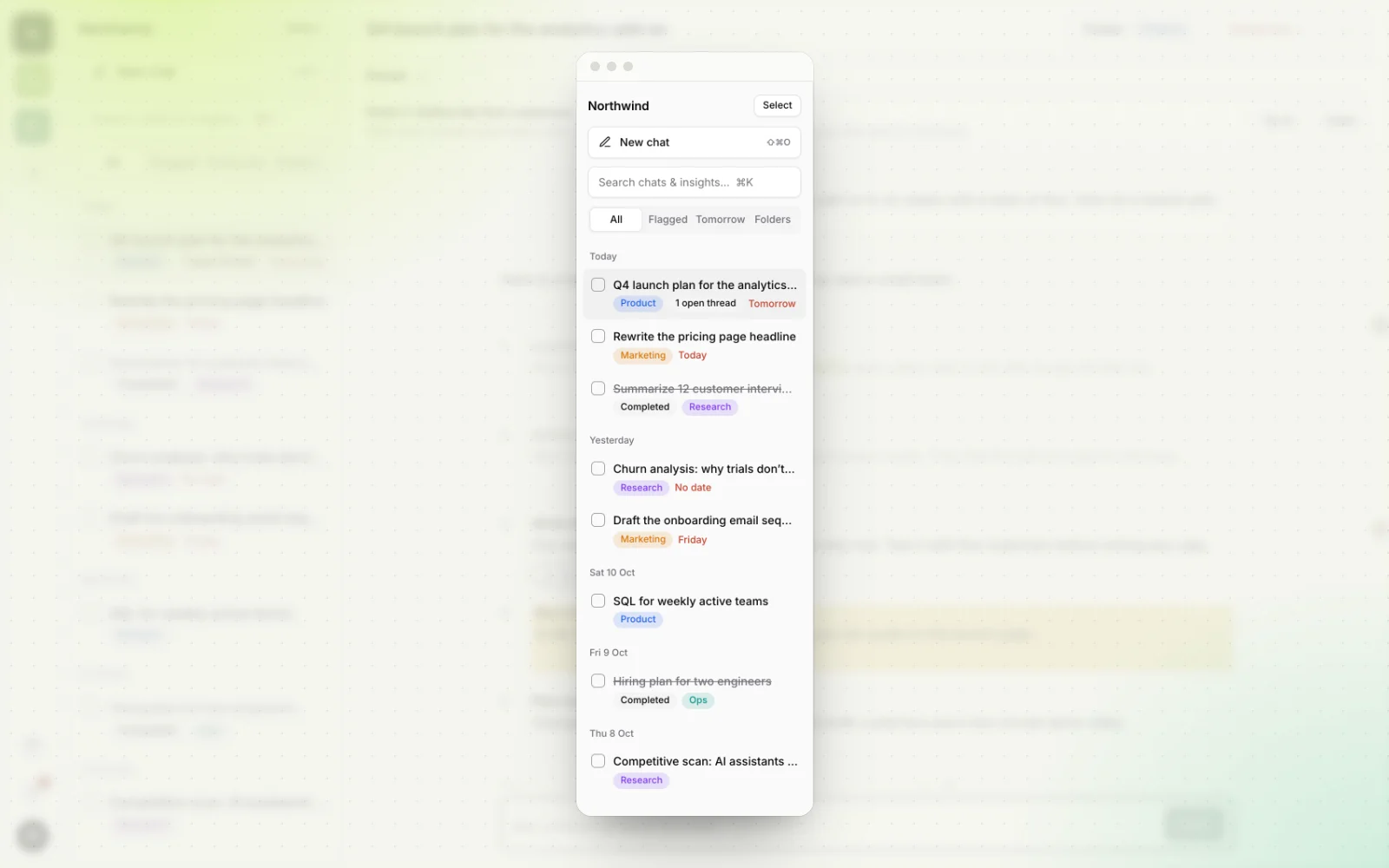
- Projects and folders. Each client, product or area of life gets its own project, and chats inside it get color-coded folders such as Product, Marketing or Research. You go to the right shelf instead of guessing keywords.
- An inbox grouped by day. Chats sit under Today, Yesterday and earlier dates, with All, Flagged and Done views, so "the thing from last Tuesday" is a short scroll away.
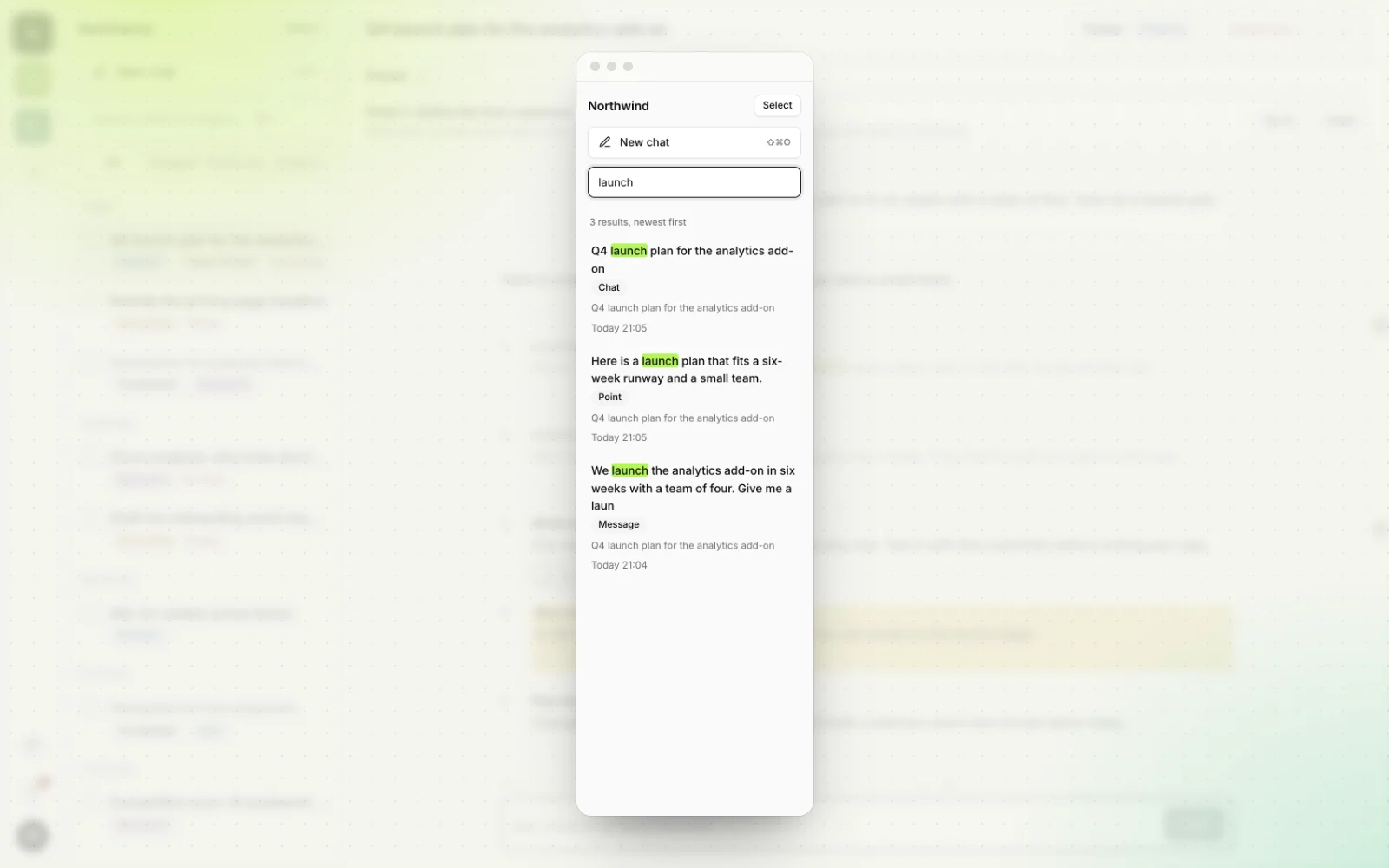
- ⌘K search down to the point. Press ⌘K (Ctrl+K on Windows) and results include whole chats, your messages and the individual points of each answer, so you land on the exact recommendation.
- Highlights you can find again. Mark key lines in one of five colors. The lines you marked are the lines you can search for months later.
- Pinned points. Pin the point you keep coming back to, and it stays at the top of the chat.
- Flags and due dates. Chats with work left in them appear on the calendar and in Reminders when they're due, so they come back to you instead of waiting to be found.
Bring your important ChatGPT chats with you
You don't have to start over. Workbranch imports a ChatGPT, Claude or Gemini conversation from its share link:
- Find the chat in ChatGPT with the steps above, then select Share to create a link.
- Paste the link into Workbranch. The conversation is imported into your workspace.
- File it and mark it up. Put it in a project and folder, highlight the key lines, and add a due date if there's work left.
Two things to know. A share link from a personal ChatGPT account is a snapshot: it contains the chat as it was when you created or last updated the link. And anyone with the link can view it, so delete the link in ChatGPT after importing if you no longer need it. Our guide to sharing AI chats walks through both.
New chats you start in Workbranch run on Google Gemini, with a model picker coming. It costs $29.90 a month with everything included, and you can cancel anytime. For the bigger idea behind it, read why we think AI chat should be organized like email.
Frequently asked questions
How do I search my ChatGPT history?
Open Search from the ChatGPT sidebar, or press Cmd+K on Mac or Ctrl+K on Windows on the web, and type a word from the conversation. Search matches chat titles and message text, and it includes archived chats.
Why can't I find an old chat in ChatGPT?
The most common causes are being signed in to a different account or workspace, the chat being archived, or searching for words that aren't in it. Deleted chats and unsaved temporary chats never appear in search.
Can I recover a deleted ChatGPT conversation?
No. OpenAI says deleted chats can't be restored in ChatGPT or through its support team, and a data export doesn't bring them back. Archive chats instead of deleting them if you might need them again.
Where are archived chats in ChatGPT?
Go to Settings, then Data controls, then Archived chats (View archived chats on some devices). From there you can unarchive a chat, and archived chats also still show up in search.
Does ChatGPT search include chats inside projects?
Yes. Sidebar search covers chats, projects, images and files, and OpenAI recommends it for finding past chats within a project.
Keep reading

Inbox zero for AI: 6 email habits that fix your chat history
Your AI chat history is the new overflowing inbox. Six proven email habits, from triage to the two-minute rule, that keep AI chats organized.
ChatGPT Projects vs Claude Projects vs Gemini notebooks: what each does, and what none of them do
ChatGPT Projects vs Claude Projects vs Gemini notebooks as of October 2026: files, memory, sharing and limits, plus the gap that all three leave open.
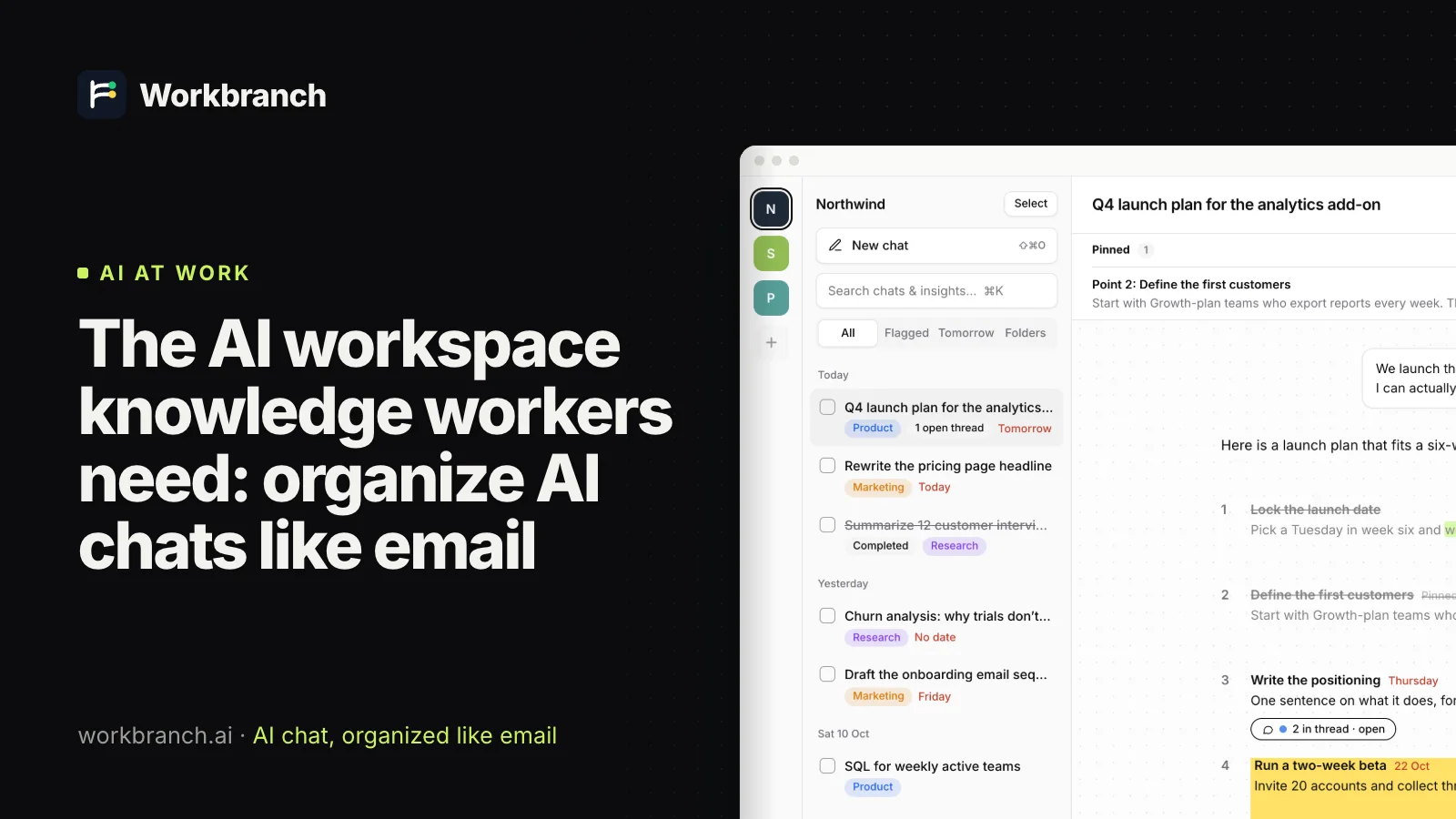
The AI workspace knowledge workers need: organize AI chats like email
An AI workspace for knowledge workers should organize AI chats like email: folders, flags, threads and done. See every email habit mapped to AI chat.