Workbranch › Blog › AI at work
AI at workThe AI workspace knowledge workers need: organize AI chats like email
AI chat gives you an expert answer in seconds. Then the answer turns into work: a plan to follow, a draft to finish, five recommendations to act on by Friday. And all of it lands in one endless chat history that was never designed to hold work in progress.
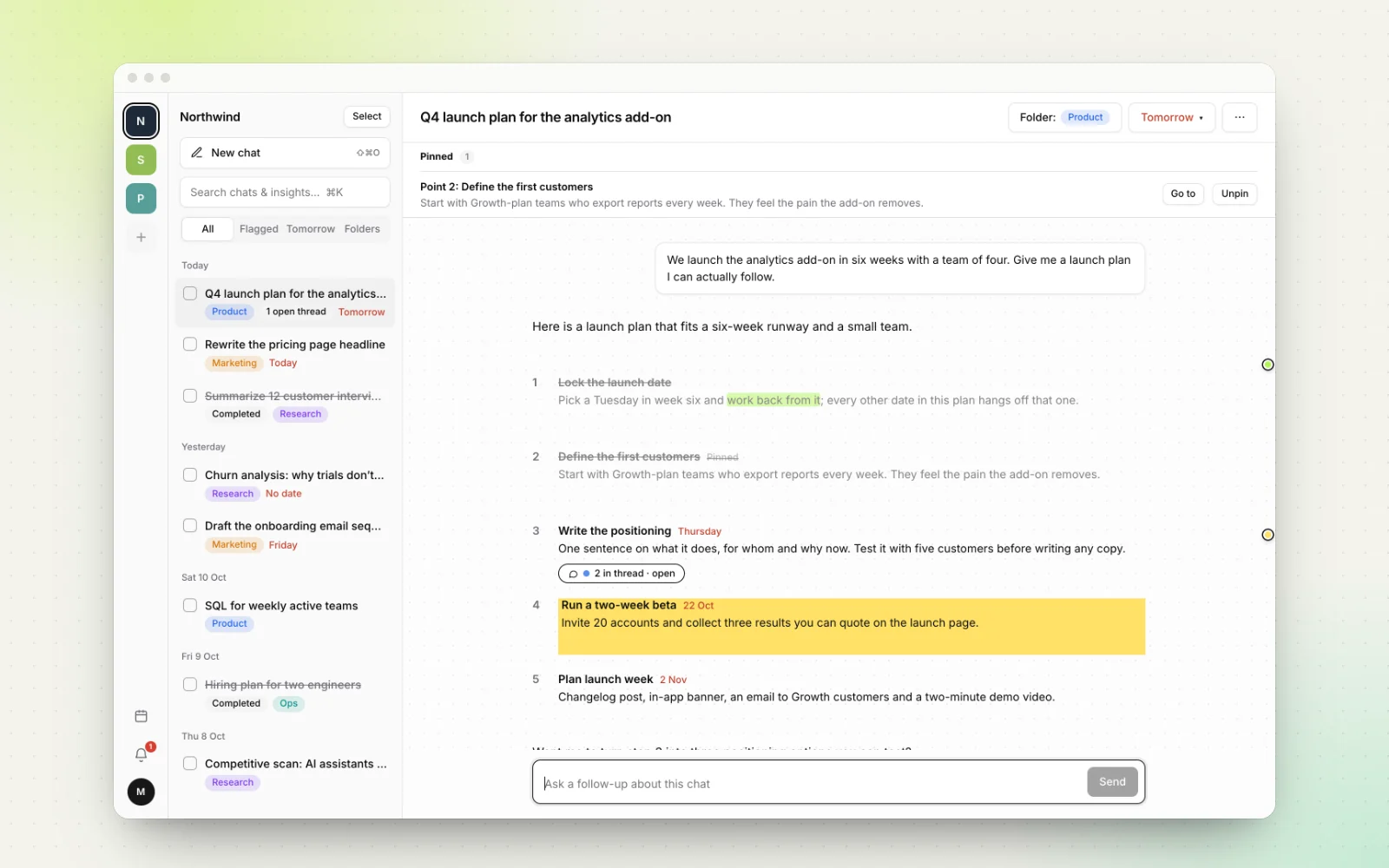
Short answer: knowledge workers need an AI workspace that combines the intelligence of AI chat with the structure of email. Every conversation gets a home (a project and folder), a status (open, flagged or done), a due date when it needs action, and threaded follow-ups. Answers stop vanishing into one long history and become work you can finish.
Most knowledge workers now live in two tools. Email is where work arrives, gets sorted and gets finished. AI chat is where questions get answered. The first comes with decades of habits for managing work. The second has almost none.
Below: what each tool does well, what breaks when AI work lives in one chat history, and how every email habit maps to an AI-chat equivalent you can use in any app.
Email has the structure, AI chat has the intelligence
Email is good at structure. It comes with conventions almost every office worker already knows:
- Folders and labels give every message a home.
- Subject lines say what a message is about before you open it.
- Flags and due dates mark what needs action, and when.
- Threads and inline replies keep each discussion attached to the thing it's about.
- Archive and mark as done move finished work out of the way.
- Inbox zero turns all of it into a routine: every message gets a decision.
None of these make a single email smarter. They make a pile of emails manageable.
AI chat is good at intelligence. Ask about a pricing model, a contract clause, a SQL query or a launch plan, and you get a structured, often expert-level answer in seconds.
But AI chat borrowed its interface from messaging apps: one conversation, one scrolling stream, one list of past chats sorted by date. That's perfect for a quick question. It's a poor container for work.
The idea in one line: email makes a pile of messages manageable; AI chat makes a single answer brilliant. Knowledge work needs both, in the same place.
What goes wrong when AI lives in one endless chat history
A good AI answer is usually the start of a task, not the end: seven recommendations, a draft with open questions, a plan with dates. In a standard chat history, that work goes wrong in predictable ways.
- Everything is sorted by date, not by work. A client proposal, a bug fix and a dinner recipe sit side by side because you asked about them on the same day.
- Titles describe the question, not the outcome. Auto-generated titles like "Marketing strategy ideas" say what you asked, not what you decided, and twelve of them look the same. (Lost one already? Here's how to find an old ChatGPT conversation.)
- Nothing has a status. A finished chat and one with five open action items look identical in the sidebar.
- Nothing has a date. There's no way to say "this matters again on Thursday", so every follow-up depends on your memory.
- Follow-ups bury the answer. Ask about point 3 and points 4 to 7 scroll out of view while the chat drifts. Here's why follow-up questions derail AI chats.
- The best lines get lost. The one sentence you needed is somewhere in a long answer, 40 messages up.
- You re-ask instead of resuming. When finding the old chat takes longer than starting over, you start over and lose the context.
To be fair, the major AI apps have added real organizing tools. As of October 2026, ChatGPT and Claude both let you group related chats into projects (see OpenAI's help page and Anthropic's), and ChatGPT, Claude and Gemini all offer ways to search past chats. Our ChatGPT Projects vs Claude Projects comparison covers the details.
Those tools are about finding a conversation, not tracking the work inside it. A chat history is a log, not a to-do list: it records what you asked, not what you decided, what you did or what's still due.
Why email is the right model, not a notes app or a to-do list
The two usual workarounds both help, and both leave a gap.
- Copying answers into a notes app keeps the content but ends the conversation. You can't ask a follow-up from a note, and a note has no status.
- Copying action items into a to-do app tracks status but strips the context. "Rewrite positioning" on Thursday's list doesn't carry the reasoning, the alternatives or the rest of the answer it came from.
Email avoided that trap by keeping the message and its status in the same place. A flagged email is the task and its full context at once. Open it and the reasoning is right there; reply and the conversation continues.
That's exactly what AI work needs: the answer, its follow-ups and the status of each recommendation, together in one thing you can file, flag and finish.
Email has a second advantage: everyone already knows it. Outlook's follow-up flags, for example, come with Today, Tomorrow, This Week and Next Week presets and a Mark Complete action (Microsoft's guide). Familiar habits beat a clever system you'd have to learn.
Every email habit, mapped to AI chat
The middle column works in any AI app; some just make it easier.
| Email habit | AI-chat equivalent | What it prevents |
|---|---|---|
| Folders and labels | File each chat by project (client, product or area of life), then by kind of work | Hunting through a list sorted by date |
| Clear subject lines | Name chats as project plus outcome: "Atlas – cut report load time to 2s" | Twelve chats called "SQL help" |
| Flag for follow-up | Flag every chat that contains action items | Action items that exist only in your head |
| Due dates | Put a date on the chat, or on the single point that's due | "I'll get to it" quietly becoming never |
| Inline replies and threads | Follow up on one point in its own side thread | Follow-ups burying the rest of the answer |
| Star or pin a message | Pin the key point to the top and highlight the lines that matter | The one useful sentence lost 40 messages up |
| Mark as done | Tick off each point as you act on it, then mark the chat complete | Rereading answers to remember what you already did |
| Inbox zero | Every chat is done, filed, or flagged with a date | A history you avoid opening |
| Search | Search inside answers and highlights, not just titles | Asking the same question twice |
| Calendar and reminders | See due chats and points by day | Deadlines you notice only after they pass |
Read the middle column top to bottom and you have the whole idea: AI answers you can file, flag, branch and finish.
How to organize AI chats like email, starting today
These steps work in ChatGPT, Claude, Gemini or any other AI app.
- One chat per outcome. Start a new chat for each task or decision, as you'd start a new email for a new topic. Wandering chats are hard to file and harder to finish.
- Name it like a subject line. Project first, then the outcome. Rename it after the first answer.
- Give it a home. Use projects, or whatever grouping your app offers, one per client, product or area. No grouping? A title prefix like "Atlas –" does most of the job.
- Ask for answers you can act on. Request a numbered list of actions that each start with a verb. These prompt patterns for actionable answers help.
- Flag what needs action. If your AI app can't hold a date, add the chat's link to your calendar or task app with a due date. Clunky, but better than memory. More in how to turn AI answers into tasks.
- Follow up one point at a time. Quote the point you're asking about ("Only about point 3: …") so the conversation stays anchored.
- Close the loop. When every point is handled, archive the chat or mark it done, so your active list shows only open work.
Make it a habit: once a week, spend ten minutes clearing throwaway chats, filing the rest, flagging open actions and closing finished ones. Our guide to inbox zero for AI chats walks through it.
This works, but you're fighting the tool: layering naming rules and a separate task list on top of one long history. That friction is why we built Workbranch.
How Workbranch combines email's structure with AI chat
Workbranch is an AI chat workspace built on this idea from the ground up. The chat works like any AI app: you ask and it answers, running on Google Gemini today, with a model picker coming. Everything around the answer works like email.
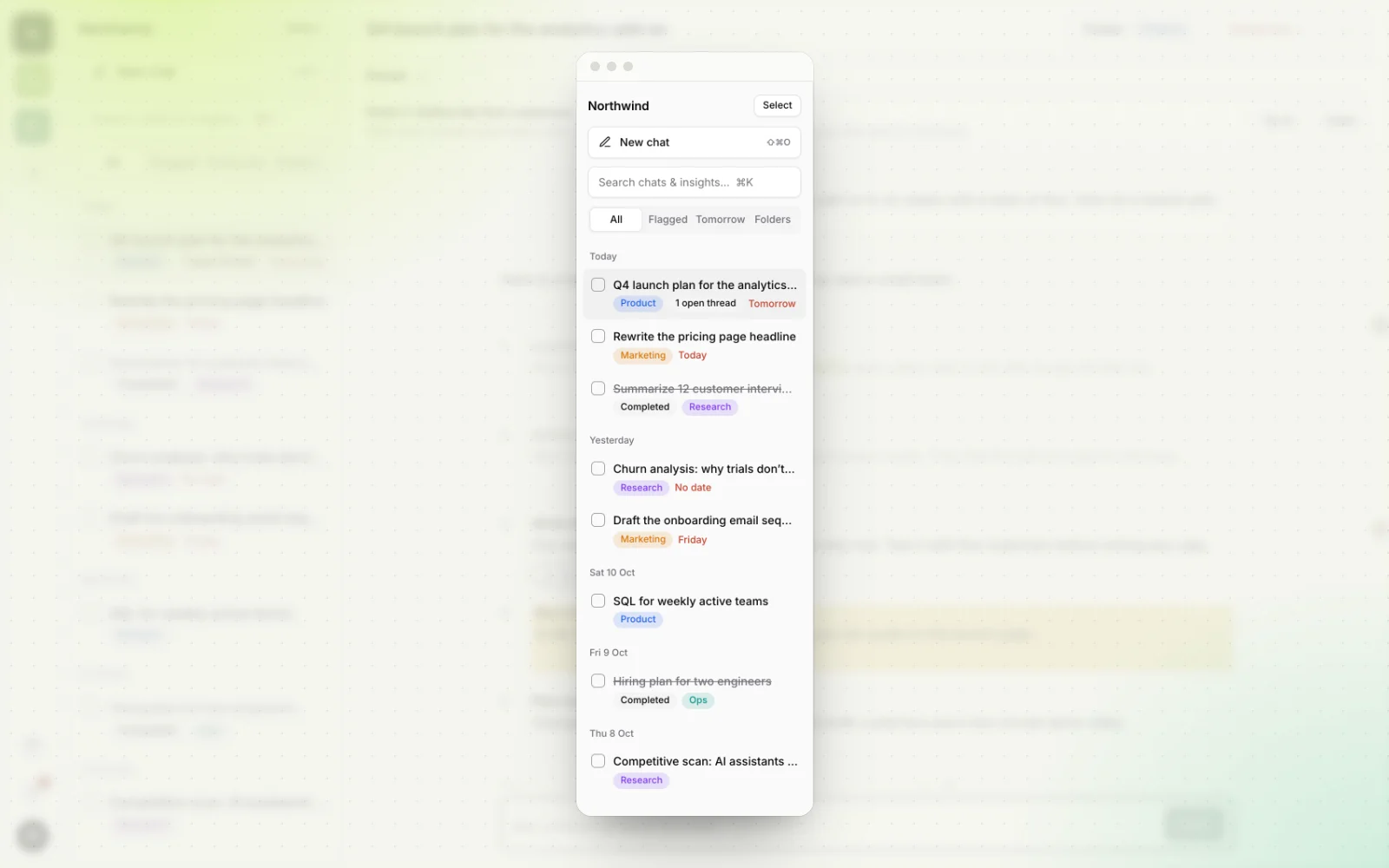
- An inbox for your AI chats. Chats are grouped by day inside projects, one per client, product or area of life, and tagged with color-coded folders. Filter to All, Flagged or Done in one click, and use bulk actions to move, date or complete many chats at once.
- Answers you can tick off. Every AI answer is split into points. Tick them off and the chat shows progress, like "2/5 points done", with a progress bar. Mark the chat complete when you're finished.
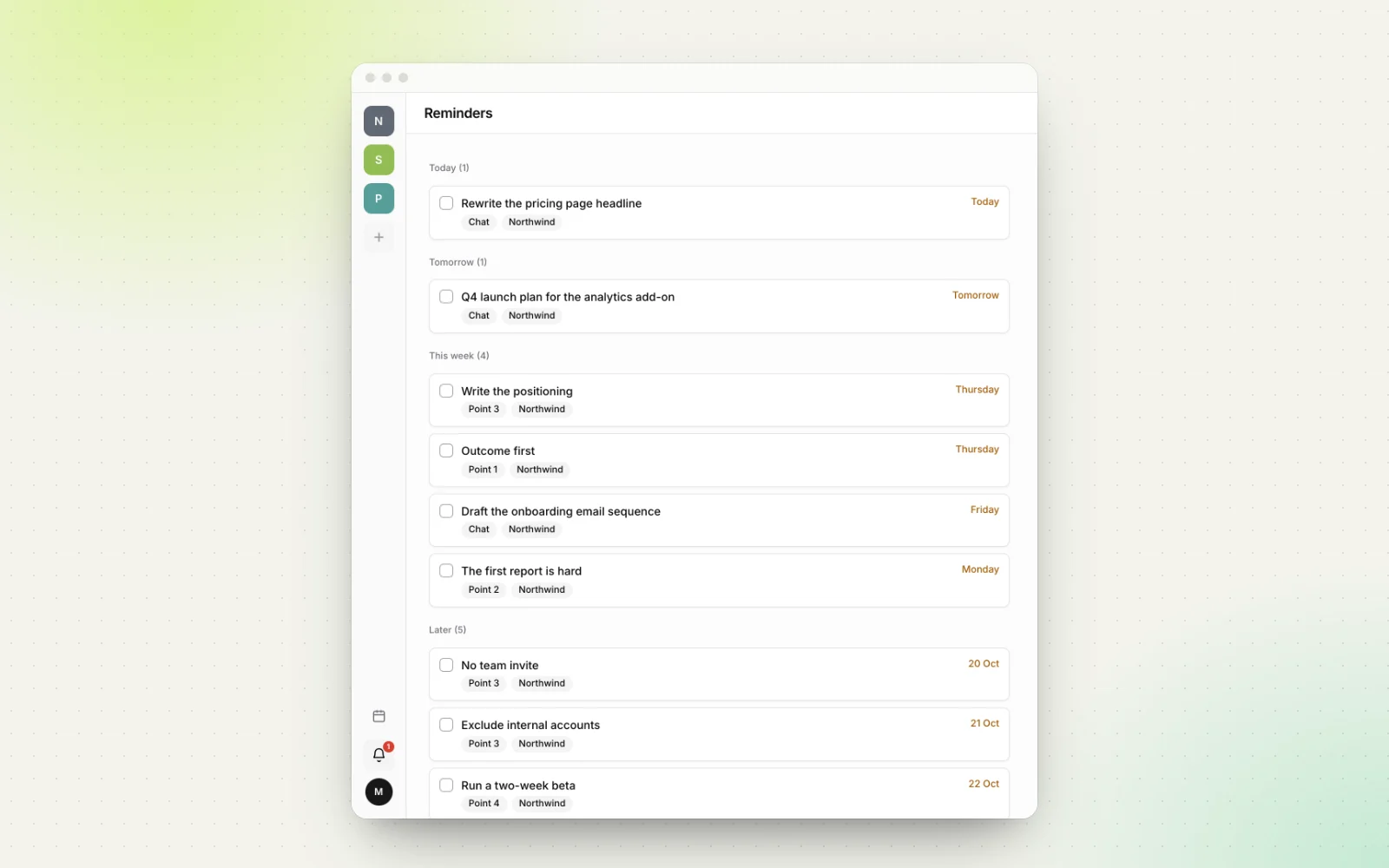
- Threads on any point. Branch a side thread from any point or paragraph, like replying to one line of an email. Each thread is open, waiting or resolved, and the main answer stays put.
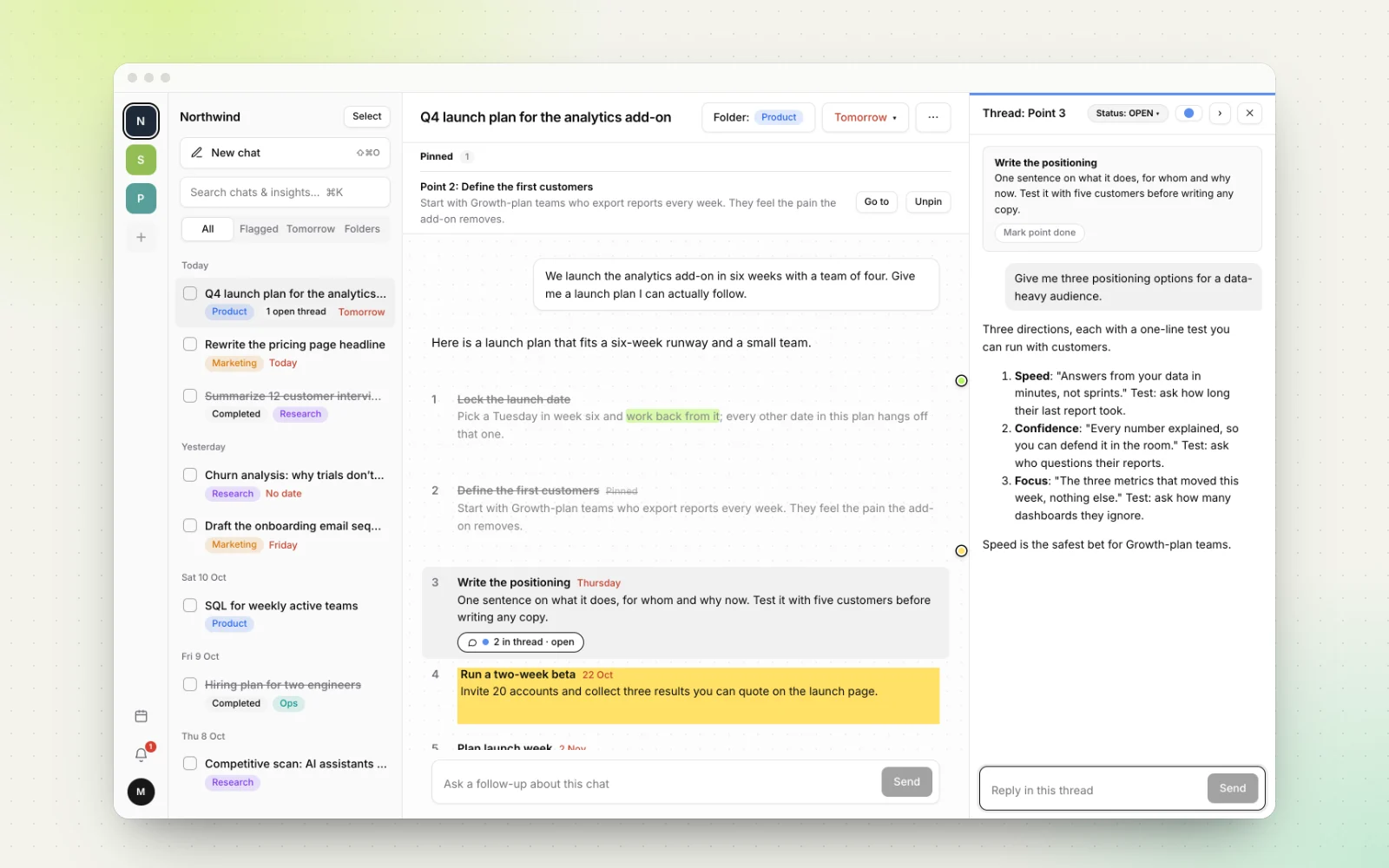
- Flags, due dates, calendar and reminders. Put a date on a chat or on a single point. Due work appears on a calendar and on a Reminders page grouped into Today, Tomorrow, This week and Later.
- Highlights, pins and search. Highlight lines in five colors, pin the key point to the top of a chat, and press ⌘K to search across chats and points.
- Your existing chats. Import a ChatGPT, Claude or Gemini conversation by pasting its share link, then file, flag and finish it here.
Workbranch costs $29.90 a month with everything included, and you can cancel anytime. See the full feature list or pricing.
When you need an AI workspace, and when you don't
If you use AI for quick, one-off questions (a definition, a rewrite, a fact check), a standard chat app is all you need. Folders and flags would just be overhead.
A workspace earns its place when:
- your AI chats produce plans, reviews or recommendations you act on over days or weeks;
- you juggle several clients, products or projects at once;
- you regularly lose track of which suggestions you've already done;
- you re-ask questions because finding the old answer takes too long.
One honest limit: Workbranch is built for individuals today, so it isn't the right fit if you need a shared AI workspace for a team.
Email taught knowledge workers how to manage a steady stream of incoming work. AI chat gave them an expert on call. The workspace that fits knowledge work lets you do both in the same place: ask, file, flag, branch and finish.
Frequently asked questions
What is an AI workspace?
An AI workspace is a tool where AI chat and the work it creates live together. Conversations are filed in projects and folders, flagged with due dates, followed up in threads and marked done, so a chat history becomes a place to finish work.
Why do knowledge workers need an AI workspace?
Because AI answers create work: plans, drafts and recommendations you act on over days or weeks. A chat history records what you asked, not what's due or what's done, so that work gets buried. An AI workspace adds the structure email already gives your messages.
How do I organize AI chats like email?
Treat each chat like an email thread: one topic per chat, a subject-line title, a project or folder, a flag and due date if it needs action, and mark it done once you've acted on it. A ten-minute weekly review keeps the list clean.
Is a to-do app enough to track AI action items?
It helps, but copying tasks out of a chat strips away the reasoning and the rest of the answer. Keeping the status inside the conversation, like a flagged email, means the context is there when you come back.
Does Workbranch work with ChatGPT, Claude and Gemini?
Workbranch runs on Google Gemini today, and a model picker is coming. You can import a ChatGPT, Claude or Gemini conversation by pasting its share link, then file, flag and finish it in Workbranch.
Keep reading
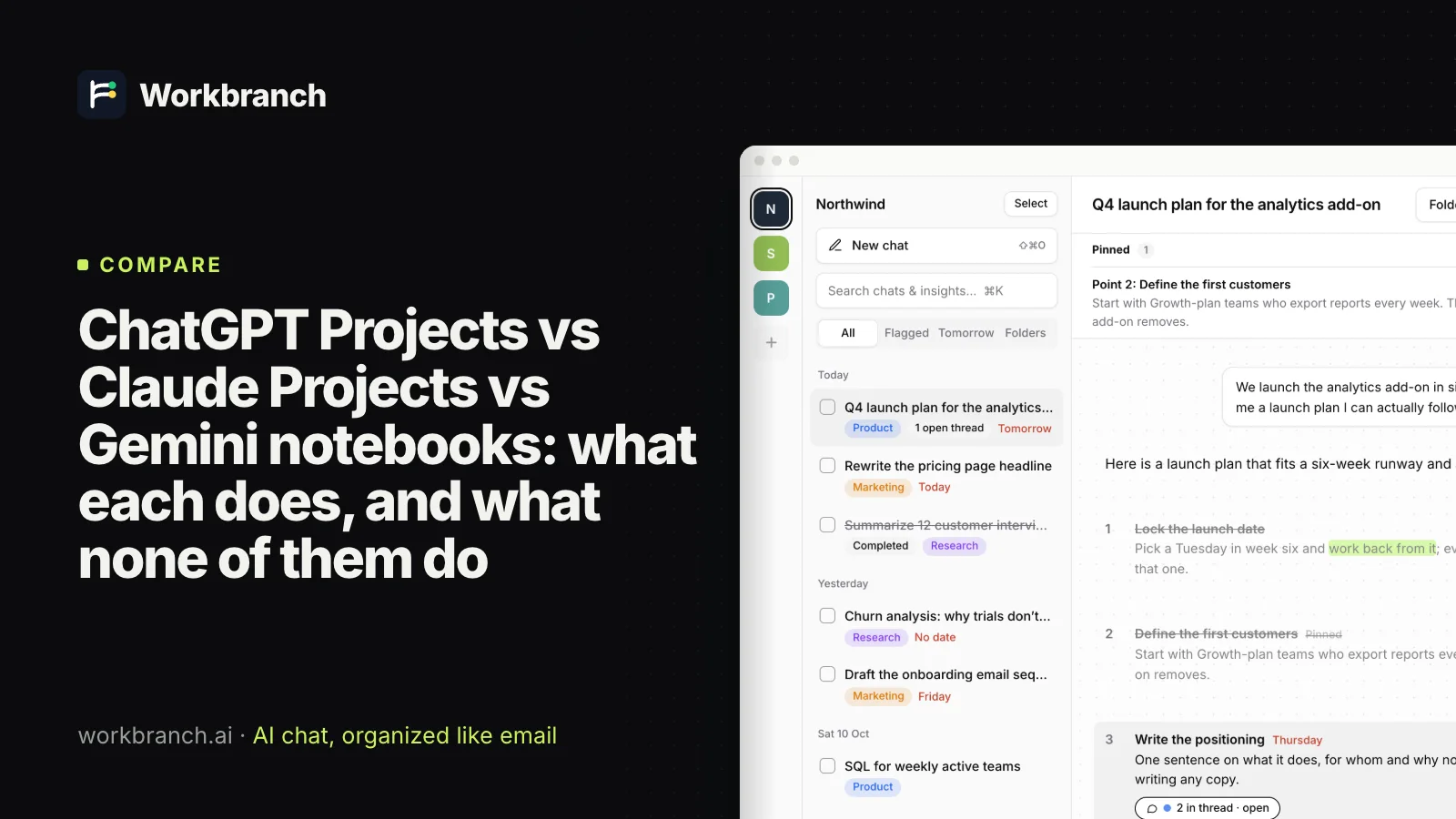
ChatGPT Projects vs Claude Projects vs Gemini notebooks: what each does, and what none of them do
ChatGPT Projects vs Claude Projects vs Gemini notebooks as of October 2026: files, memory, sharing and limits, plus the gap that all three leave open.
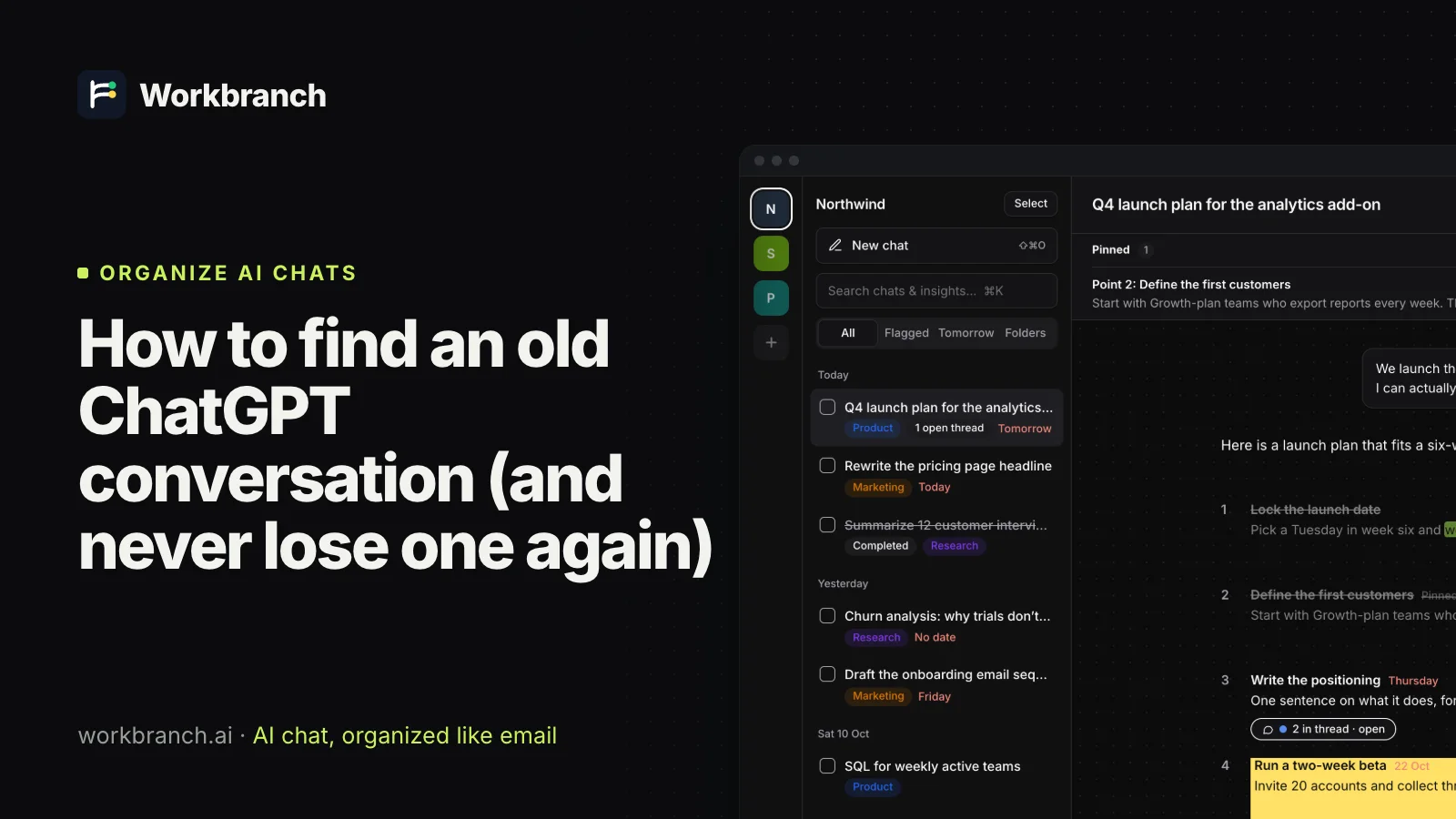
How to find an old ChatGPT conversation (and never lose one again)
How to find an old ChatGPT conversation: search tricks, archived chats, projects, memory and data export, plus habits so good answers never get lost.
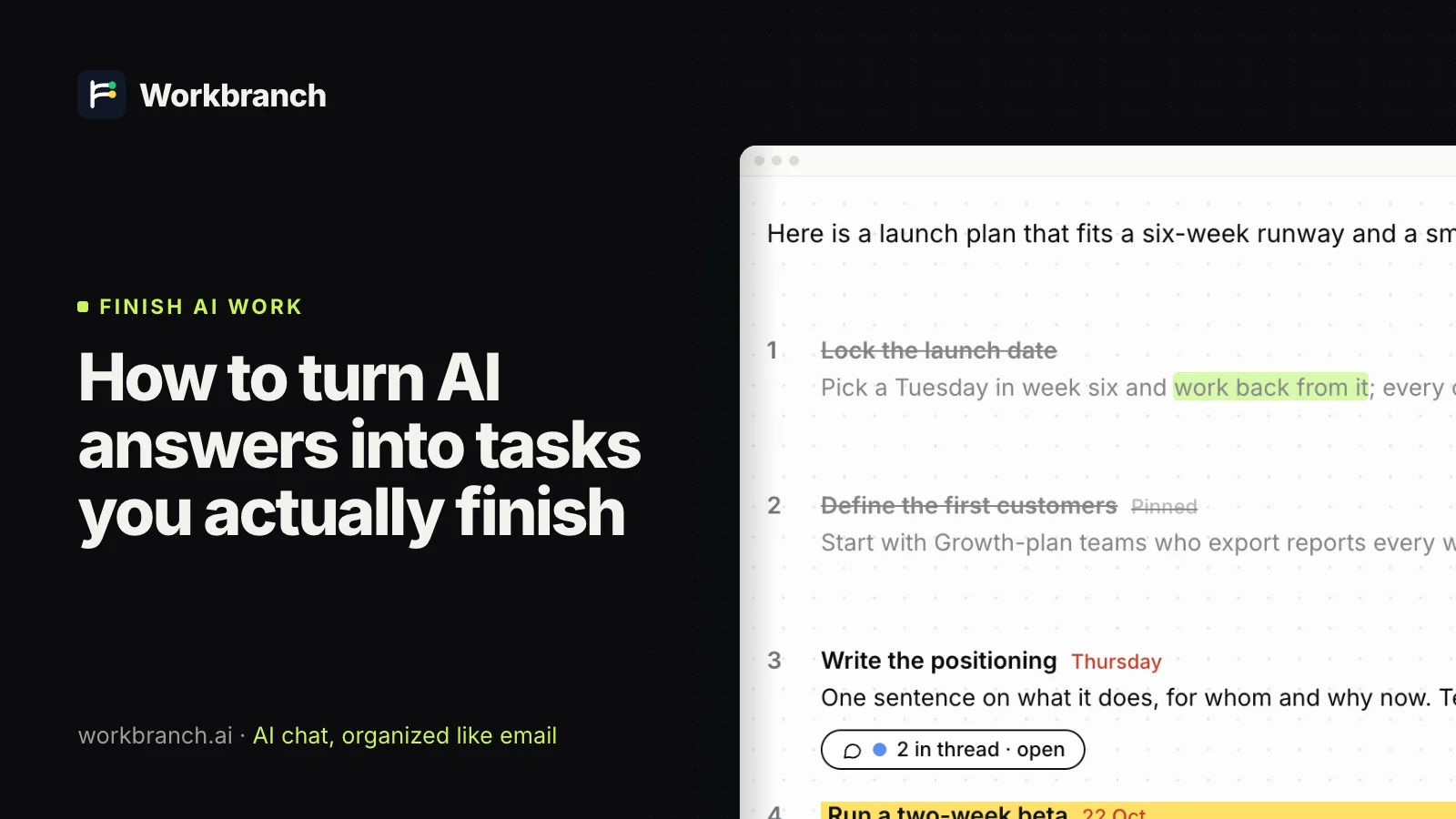
How to turn AI answers into tasks you actually finish
Turn AI answers into tasks: get numbered steps from ChatGPT, Claude or Gemini, give each a date and track it to done. A method that works in any AI app.